Accounting Settings
When entering Transactions, you can have specific transaction details appear automatically (by default) as you tab through the fields. Use the Settings button under the Special Functions menu to set these defaults and activate additional features to the Accounting Module.
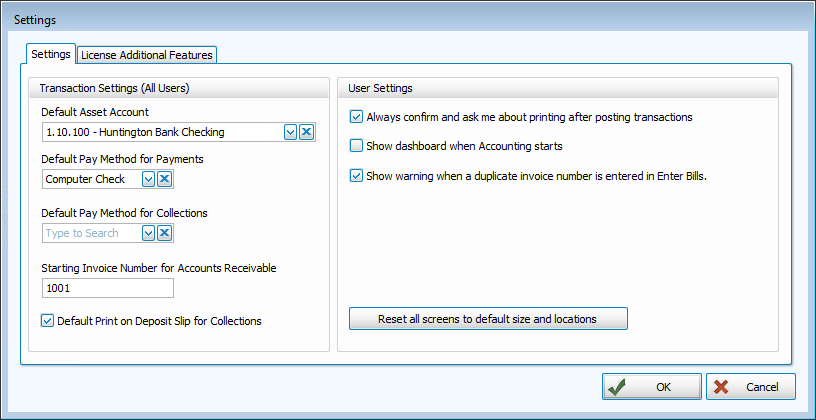
Settings tab
Transaction Settings
Select your desired universal settings from the dropdown boxes on the left side of the screen:
- Default Asset Account
- Default Pay Method for Payments
- If using the Accounts Receivable feature, also choose:
- Default Pay Method for Collections
- Starting Invoice Number for Accounts Receivable invoices you will be issuing in the box.
- If you want your Accounts Receivable Collections to print on the Deposit Slip, click to place a check in the Default Print on Deposit Slip for Collections box.
User Settings
These settings on the right side of the screen are unique to each of the Users in your database:
- Always confirm and ask me about printing after posting transactions
Check this box if you want Church Windows to automatically give you the option to print a report after your make a posting.
- Show Dashboard when Accounting starts
Check this box if you would like the Accounting Dashboard to open as soon as you open the Module.
- Show warning when a duplicate invoice number is entered in Enter Bills.
Check this box if you want the system to notify you when a repeat Invoice number is entered, or leave the box unchecked if you do not want to be notified.
If you are unable to see certain windows or need to reposition windows to view them more easily, click the button to Reset all screens to default sizes and locations.
License Additional Features tab
The software contains an Accounts Receivable option which must be activated by entering a Licensing key. The license key is given to you when you subscribe to the Accounts Receivable Module.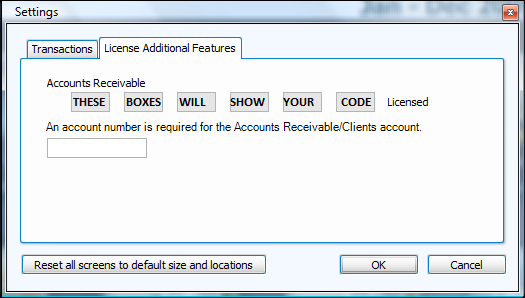
If your screen looks similar to the one in the image above, you can be sure that the Accounts Receivable portion of the software has already been established. Otherwise, if you would like to start using it, contact support for more information at 800.533.5227.
